

If your Pixel 10 Lag After January 2026 Update started the same day you installed it, you’re not imagining it. If your Pixel 10 started lagging right after the January 2026 update, you’re not imagining it. A lot of people noticed the same kind of device lag, random crashes, and even AOD flickering or small screen glitches after updating.
The good news is you usually do not need to factory reset right away. Below is the exact fix order I’d follow on my own phone, starting with the safest steps first so you can get your speed back fast.
These are safe, standard Android troubleshooting steps that often fix update related slowdowns. The same steps also apply to the Pixel 10 Pro. Some people also report Wi-Fi and Bluetooth issues after the January 2026 update, so a network reset step is included if needed.
What changed after the January 2026 update (and why your Pixel 10 feels slower)
A phone update can feel like moving into a newly renovated apartment. Everything looks the same, but boxes are everywhere behind the scenes. For the first day or two, the system may run extra tasks that compete for speed.
Common reasons a Pixel can feel worse right after an update include:
- Background optimization: Android may re-optimize apps for the new build, which can raise heat and cause stutters.
- Google Play services and Play system changes: core components update quietly and can affect app behavior.
- Cached files acting weird: old temporary data can clash with new system code.
- App conflicts: one outdated app (or an app with overlay permissions) can slow the whole UI.
- Firmware glitches: some updates introduce bugs that show up as freezing, crashes, or display oddities like AOD flicker.
Reports about the January 2026 Pixel 10 update mentioned lag and crashes in the days after rollout, including performance drops tied to system components and update timing. For context on what users described, see coverage like Pixel 10 lag and crashes after an update.
Reality check: the first 24 to 48 hours after an update can be rough. Still, constant freezing, daily crashes, or Settings locking up usually needs troubleshooting.
Start here (2-minute quick fixes)
This section is meant for the moment when the phone feels “broken” and time is short. Run these in order and stop as soon as things feel normal.
Here’s a fast reference before the details:
| Quick fix | What to do | What you should see | Move on when |
|---|---|---|---|
| Restart | Reboot once | Fewer stutters, fewer “not responding” popups | Lag returns within minutes |
| Update apps | Update all in Play Store | Problem apps crash less | Freezing still happens system-wide |
| Check storage | Keep 10 to 15 GB free | Faster app switching | You already have space |
| Test AOD off | Disable AOD for a day | Flicker stops | Flicker continues with AOD off |
| Battery Saver off | Turn it off and test | Smoother scrolling | Stutter remains |
If your phone feels normal now, stop here.
Restart your Pixel 10 (yes, it matters)
What to do: hold the Power button, then tap Restart (or power off, wait 20 seconds, then power on).
What you should see after: the first unlock should feel smoother. Random UI hiccups may stop, especially if a background process got stuck.
When to stop and move on: if the phone still freezes, crashes, or lags again within 5 to 10 minutes.
Update all apps in the Play Store
Old app versions can crash after a system change.
What to do: open Play Store, tap the profile icon, choose Manage apps and device, then Update all.
What you should see after: the same apps that were crashing should open normally more often. Scrolling may improve if a launcher, keyboard, or social app was the issue.
When to move on: if updates finish and the lag or freezing still happens across multiple apps.
Check storage (low space causes smartphone slowdown)
Low storage can make any phone feel like it’s dragging a heavy backpack.
What to do: go to Settings > Storage. Aim for 10 to 15 GB free.
Quick wins: delete large videos, clear Downloads, remove unused offline music or maps, and uninstall apps you no longer use.
What you should see after: faster app switching and fewer reloads when jumping between camera, messages, and browsers.
When to move on: if you already have enough free space, or freeing space doesn’t change lag.
Turn off AOD for a test (for AOD flickering / screen glitch)
Always-on display issues can look scary, but this is a test, not a forever change.
What to do: go to Settings > Display > Lock screen, then toggle off Always show time and info (wording may vary).
What you should see after: AOD flicker stops, and the screen should flash less on wake.
When to move on: if the flicker continues even with AOD off, or if performance issues remain. For background on this symptom, see reports such as flickering Always-on Display on Pixel 10.
Toggle Battery Saver OFF, then test again
Battery Saver can lower performance. After an update, that “slower” feel can turn into obvious stutter.
What to do: go to Settings > Battery > Battery Saver, then turn it off. Use the phone normally for 10 minutes.
What you should see after: smoother scrolling and fewer delayed taps, especially in heavy apps.
When to move on: if there’s no change, or if you need Battery Saver for a trip and can’t keep it off.
Quick check: Is it an app problem or a system problem?
Safe Mode is the fastest way to sort this out without guessing. It’s a fork in the road.
If Safe Mode proves it’s an app issue, focus on app cleanup first. Don’t reset the whole phone yet.
Try Safe Mode (fast test)
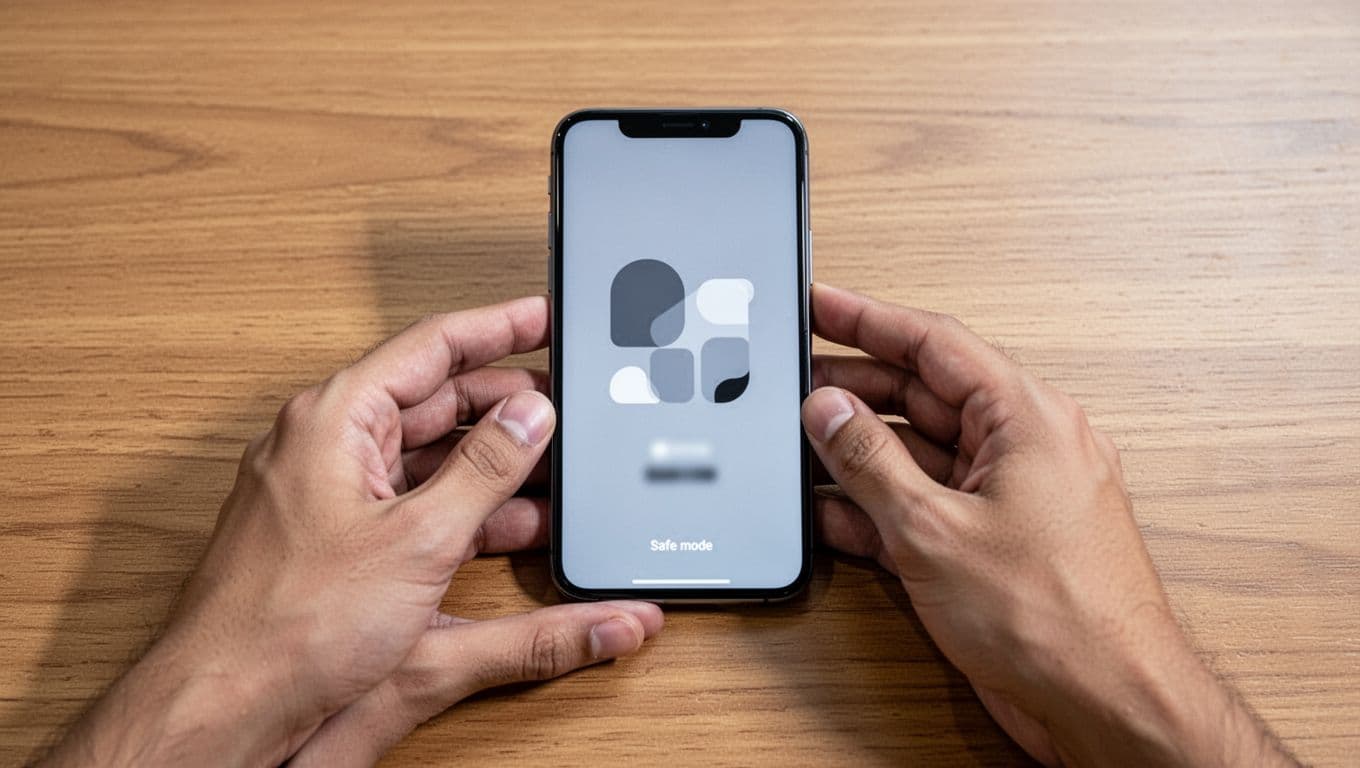
Safe Mode runs Android with only built-in apps. It temporarily disables downloaded apps.
What to do (common Pixel method): press and hold the Power button, then press and hold Power off, then confirm Safe Mode. After the reboot, “Safe mode” usually appears near the bottom of the screen.
What you should see after: if the phone is smooth in Safe Mode, a downloaded app or setting is the likely cause.
When to move on: after 5 to 10 minutes of testing basics (scrolling, opening Settings, camera, and the app drawer).
If lag is gone in Safe Mode (most common cause)
If the lag disappears in Safe Mode, a recent app install or update often explains it.
Action order (stop as soon as performance is back):
- Uninstall the last 3 apps you installed or updated (one at a time).
- Restart normally, then test for a few minutes after each removal.
- Switch back to Pixel Launcher for testing if you use a third-party launcher.
- Disable apps with overlay-style permissions, such as screen dimmers, accessibility overlays, clipboard managers, and some password helpers.
Common troublemakers include launchers, VPNs, battery saver apps, “night screen” overlays, keyboard apps, and automation tools.
Avoid “cleaner,” “RAM booster,” and “phone optimizer” apps. They often increase background activity and make freezes worse.
What you should see after: fewer launcher stutters, faster unlock, and fewer random app crashes.
When to move on: if you removed likely apps and lag still appears in Safe Mode, it’s time for system-level fixes.
If lag still happens in Safe Mode (system-level fixes)
If Safe Mode doesn’t help, the issue is less likely to be a downloaded app. Next, focus on system cleanup and resets that usually don’t erase personal data.
This matters because some January 2026 reports described Settings freezing, plus Wi-Fi and Bluetooth toggles failing around update timing. If connectivity is part of the problem, the network reset step below is worth trying. For a broader view of what the January update aimed to address, see summaries like January 2026 Pixel update fixes.
Fix order (do these one by one)
This is the core flow. Run one step, then test for a bit. Don’t stack five changes at once.
Also check temperature while testing. If the phone feels hot, let it cool and remove a thick case. Heat can cause stutter and app reloads.
Clear cache for problem apps (safe place to start)
What to do: Settings > Apps > See all apps, choose the app that freezes (often Pixel Launcher, a keyboard, or a social app), then Storage & cache > Clear cache. Don’t use “Clear storage” unless you’re okay signing in again.
What you should see after: fewer app hangs and fewer “not responding” popups inside that app.
How long to test: 30 minutes of normal use.
When to stop and move on: if the lag is system-wide and not tied to one app.
Reset app preferences (fixes disabled system apps and defaults)
What to do: Settings > Apps > See all apps, tap the three-dot menu, then Reset app preferences (wording may vary).
What you should see after: odd behavior like missing notifications, broken defaults, or blocked background activity may clear up.
How long to test: 30 to 60 minutes.
When to stop and move on: if you don’t notice any change, or if Settings still freezes.
Check for system updates and Google Play system updates, then reset network settings if Wi-Fi or Bluetooth is flaky
What to do (system update): Settings > System > Software updates > System update. Install any available update, then restart.
What to do (Play system update): Settings > Security and privacy > Updates > Google Play system update (path may vary). Install if offered.
What you should see after: bug fixes may reduce crashes, improve touch response, or smooth animations. Rolling back is usually not simple, so focus on forward updates.
If Wi-Fi or Bluetooth drops, or if Settings hangs on Network pages: run a network reset at Settings > System > Reset options > Reset Wi-Fi, mobile and Bluetooth.
What it changes: it does not erase photos or apps, but it will forget saved Wi-Fi networks and Bluetooth pairings.
When to stop and move on: if connections stabilize and the phone stops hitching when switching networks.
Reduce the work your phone has to do (animations and a few connection features)
What to do (easy option): Settings > Accessibility > Color and motion > Remove animations (or similar toggle).
If you already use Developer options: don’t change random items. Only adjust animation scales:
- Window animation scale: 0.5x
- Transition animation scale: 0.5x
- Animator duration scale: 0.5x
If you have network weirdness: turn off Adaptive Connectivity for one day, then retest.
What you should see after: faster-feeling app opens and less janky scrolling. If AOD flicker returns, keep AOD off for now.
When to stop and move on: if the phone feels smoother again during normal use.
Last resort: backup, then factory reset (only if the phone is still freezing every day)
Factory reset is worth considering only when Safe Mode didn’t help and the phone still freezes or crashes daily.
What to do first (quick backup checklist):
- Confirm Google One backup is current.
- Make sure Google Photos (or your photo app) finished syncing.
- Save 2FA codes (Authenticator export, backup codes).
- Backup chats (for example, WhatsApp backup).
- Note bank app logins and any device approvals you may need again.
- If you use eSIM, save carrier details (some carriers require a new QR code).
Then reset: Settings > System > Reset options > Erase all data (factory reset).
What you should see after: smoother setup, fewer crashes, and normal launcher performance.
When to stop and get help: if the phone is still broken after the reset and all updates, contact Google support or your retailer. A deeper firmware issue or hardware fault is possible.
People also ask: quick answers about freezing, crashes, and AOD flicker
Why is my Pixel 10 lagging after the January 2026 update?
It often happens because the phone is finishing background setup, or an app and cached data don’t play well with the new build. If the lag lasts more than 48 hours, troubleshooting helps. Some reports tied the timing to system component changes like Play services updates.
How do I fix Pixel 10 lag after an update without factory reset?
Start with a restart, update all apps, free storage, and test AOD off. Next, use Safe Mode to confirm if a downloaded app is the cause. After that, clear cache for problem apps and try a network reset if connections are unstable.
Does the Google Play system update cause Pixel lag?
It can, because Play system components and Play services updates can change how apps run in the background. A Play system update is also easier to check than to roll back. This is why checking for updates and then testing one change at a time matters.
Why is my Pixel 10 crashing after the update?
Crashes often come from one app that hasn’t updated for the new software, or from corrupted app cache. Safe Mode is the fastest test. If Safe Mode helps, remove recent apps and anything with overlay permissions.
How do I stop AOD flickering on Pixel 10?
Turn off Always-on Display for a day to confirm it’s the trigger, then keep it off until a later patch or setting change fixes it. A reboot and “Remove animations” may also reduce related screen glitches.
Will a future update fix Pixel 10 performance issues?
It may, especially if the cause is a software bug that affects many users. Still, the safe fixes in this guide can reduce the impact now. Checking weekly for system and Play system updates helps, without spending hours doom-scrolling patch threads.
Common mistakes to avoid when your Pixel 10 feels broken after an update
- Don’t install random “RAM booster” or cleaner apps. They often add background load.
- Don’t factory reset first. Safe Mode can save hours and keep data intact.
- Don’t change Developer options blindly. One toggle can create new problems.
- Don’t ignore storage and app updates. Low space and outdated apps are common causes.
- Don’t follow risky ADB or sideload steps unless you understand them, since mistakes can complicate support.
Results and expectations: what “fixed” looks like, and when to wait for a patch
“Fixed” usually looks boring, in a good way. Scrolling stays smooth. Apps don’t reload as often. Random freezes stop. Heat and battery use settle down.
Your phone should feel smoother within 10 to 60 minutes after the quick fixes. Still, some post-update background work can take a day.
Waiting for a patch makes sense when you tried the safe steps, the issue is reduced but not gone, and it started right after the update. In that case, keep workarounds in place (AOD off, problematic app removed, animations reduced) while watching for the next monthly update or Play system update. Some coverage also tracks update-side fixes for Pixel glitches, such as Pixel update fixes and known glitches.
Get help sooner if crashes repeat, Settings won’t open, Wi-Fi and Bluetooth toggles fail, or problems continue after a factory reset.
Conclusion
When Pixel 10 lag after January 2026 update hits, the fastest path is simple: restart and update apps, free space and test AOD off, then use Safe Mode to confirm app vs system. After that, follow the fix order and stop as soon as performance returns. Factory reset belongs at the end, not the start.
Comments help others. Include what worked, your model (Pixel 10 or Pixel 10 Pro), your Android version, and your country.
SEE ALSO: Mobile Data Not Working After Update Android? Fix in 5 Min
