
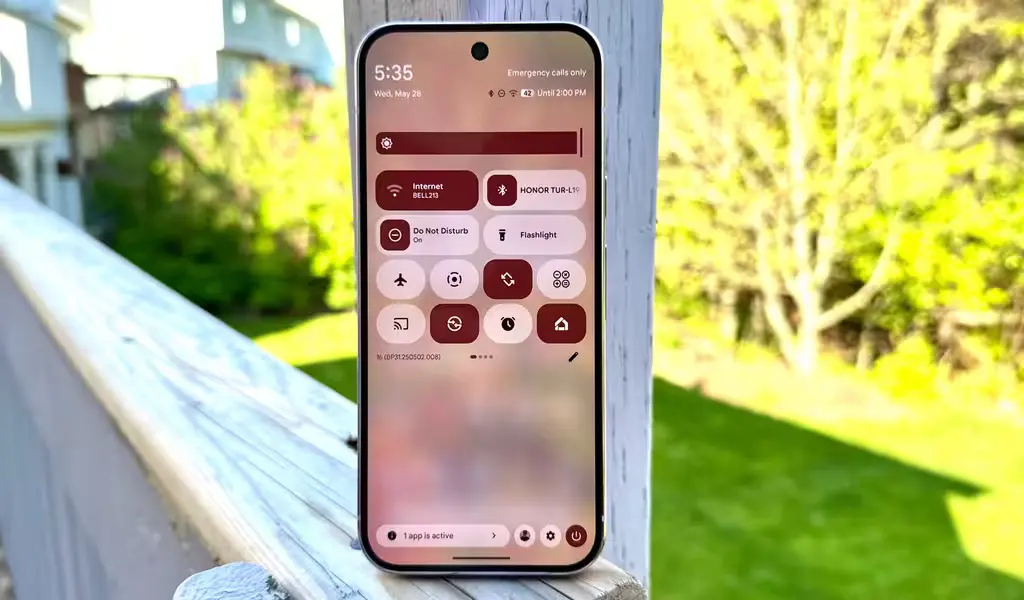

When pixel android 16 wifi not working shows up right after an update, it can feel like the phone lost its most basic skill. This fix-first guide is for Google Pixel 6 and newer in the UK and USA on Android 16 (stable or beta). It covers WiFi disconnects, devices connected but without internet, slow speeds, and a WiFi toggle that won’t turn on. The steps start safe and simple, then move to stronger resets only if needed. Try them in order, and stop when it works, for broader related issues, see Pixel Android 16 problems and fixes.
Quick fixes to try first (2 minutes, no risk)
Run this short checklist before changing deeper settings:
- Airplane mode on/off
- Restart phone
- Restart router (unplug 30 seconds)
- Forget network + reconnect
- Disable VPN temporarily
- Check for system update + Google Play system update
If WiFi broke right after Android updates, community reports often match these symptoms. For example, Google’s Pixel help forum has multiple threads on connection failures after Android 16, including can’t connect to Wi‑Fi after Android 16 update.
Pick your problem so you don’t waste time
Use the label that matches what’s happening on the mobile device:
A) WiFi disconnecting/dropping
Drops when the screen locks, or it flips to LTE or 5G.
B) Connected but no internet
Shows “Connected,” but pages and apps won’t load.
C) Slow WiFi speed
Other devices are fast, but the Pixel crawls.
D) WiFi won’t turn on
The WiFi toggle is gray, turns itself off, or won’t stay on.
Step-by-step fixes for Pixel Android 16 WiFi not working
Android version changes can shift network drivers, flip battery and data toggles, or corrupt a saved network profile. VPNs and Private DNS can also clash after an update. The goal here is to fix the most common causes without tools, tech jargon, or risky resets.
Pixel WiFi keeps disconnecting on Android 16 (drops at home, switches to mobile data)
After an update, WiFi drops often come from Adaptive Connectivity behavior, a damaged WiFi profile, or an app that manages network switching. This is especially common when a phone roams between 5 GHz and 2.4 GHz bands.
- Turn off Adaptive Connectivity
Go to Settings > Network & internet > Adaptive connectivity, then turn it off. - Forget the network and reconnect
Go to Settings > Network & internet > Internet > Wi‑Fi, tap the network, then Forget. Rejoin and re-enter the password. - Toggle Randomized MAC only if needed
This changes the device identity your router sees, which can help if the router saved a bad profile for the phone.
Go to Settings > Network & internet > Internet > Wi‑Fi > (gear next to network) > Privacy > Device MAC, then switch between Randomized MAC and Device MAC. - Switch to 2.4 GHz temporarily
2.4 GHz is often slower, but it can be more stable through walls and at longer range. Use it for a day to test stability. - Safe Mode test to rule out apps
Press and hold the Power button, then press and hold Power off, then tap OK to enter Safe Mode. Test WiFi for a few minutes. Restart to exit Safe Mode. - Reset Wi‑Fi, mobile & Bluetooth
Go to Settings > System > Reset options > Reset Wi‑Fi, mobile & Bluetooth.
If the phrase “Pixel WiFi keeps disconnecting at home, Android 16” fits the situation, focus on steps 1 through 4 first, since they address most home stability issues. Stop here if it works.
A wider wave of early-2026 update complaints also mentions WiFi and Bluetooth instability on some models, as summarized by Nextpit’s report on Pixel update WiFi and Bluetooth failures.
WiFi connected but no internet on Android 16 Pixel (connected, nothing loads)
This can happen when the phone keeps a “connected” WiFi link but can’t reach DNS or the gateway, often due to Private DNS, VPN rules, or a corrupted network entry after an update.
- Test another device on the same WiFi for 60 seconds
If a laptop or another phone can’t browse either, the router or ISP is likely the issue. If other devices work, keep going. - Disable VPN and Private DNS temporarily
Go to Settings > Network & internet > VPN, then disconnect.
Next, go to Settings > Network & Internet> Private DNS, then set it to Off or Automatic. - Forget and reconnect
Go to Settings > Network & internet > Internet > Wi‑Fi, select the network, tap Forget, then rejoin. - Reset network settings
Go to Settings > System > Reset options > Reset Wi‑Fi, mobile & Bluetooth. - Optional: Try a simple DNS change
If Private DNS is needed, set Private DNS to a well-known provider (for example, Google DNS). If it doesn’t help, switch back to Automatic.
The most common version of this complaint is “Pixel WiFi connected but no internet Android 16,” and steps 2 through 4 usually clear it. Stop here if it works.
For similar cases reported by users, see Google’s community thread on can’t use Wi‑Fi or Bluetooth since Android 16 update.
Gotcha: Private DNS and VPN settings can stay “on” across updates, even when they stop working well. Turning them off for two minutes is a fast proof test.
Pixel Android 16 slow WiFi (good signal, bad speed)
Slowdowns after an update often come from band steering (5 GHz vs 2.4 GHz), interference, or a phone setting that prefers mobile data. Sometimes the phone is “fine,” but it’s clinging to a weak 5 GHz signal.
- Compare speed near the router vs far away
If it’s fast near the router but slow across the house, the issue is range or band selection, not the phone itself. - Turn off Adaptive Connectivity
Go to Settings > Network & internet > Adaptive connectivity, then turn it off and re-test. - Turn off Bluetooth for 2 minutes
Bluetooth can add interference in some rooms, especially with older routers. Toggle it off briefly to test. - Use the right band (5 GHz vs 2.4 GHz)
5 GHz is usually faster at short range. 2.4 GHz often holds a connection better through walls.
If “Pixel WiFi won’t connect to 5GHz Android 16” appears, try forgetting and rejoining the network, restarting the router, then testing 2.4 GHz to confirm the phone still works. - Router reboot and a simple channel check
Reboot the router. If the router app has an “Auto channel” option, turn it on. If it offers channels, try a different one and re-test.
Stop here if it works.
Pixel Android 16 WiFi keeps turning off or the WiFi toggle won’t turn on
Some Android updates can break WiFi and Bluetooth for some users. When the WiFi toggle grays out or flips off, it can be more than a simple settings conflict. Still, a few safe steps are worth trying first.
- Restart twice
Restart once, wait 30 seconds, then restart again. A second reboot can finish post-update cleanup. - Safe Mode test
Enter Safe Mode (press and hold the Power button, then tap OK). If WiFi works there, an app is likely interfering. - Reset Wi‑Fi, mobile & Bluetooth
Go to Settings > System > Reset options > Reset Wi‑Fi, mobile & Bluetooth. - Check for updates (both types)
Go to Settings > System > System update.
Also check Settings > Security & privacy > System & updates > Google Play system update. - If still broken, treat it like a bug
If “Pixel WiFi disabled and won’t turn on Android 16” matches your situation, waiting for a patch and contacting support are often better than a factory reset. A reset can waste time and may not help if the driver is the problem.
Stop here if it works.
For examples that sound similar, Google’s community has reports like Wi‑Fi turns itself off after Android 16 update and more severe cases such as Wi‑Fi and Bluetooth totally dead.
What usually fixes it, plus mistakes to avoid while you troubleshoot
Most users don’t need every step. These three fixes solve a large share of cases:
- Forget and reconnect to the WiFi network
- Turn off VPN and Private DNS for a quick proof test
- Reset Wi‑Fi, mobile & Bluetooth (network reset)
Two common mistakes slow things down. First, don’t factory reset early. It can be stressful, and it might not fix driver bugs. Second, don’t burn through mobile data while testing. If the Pixel keeps switching to cellular, look in Settings > Network & internet > Internet for a gear icon or network preferences, then disable any option like “switch to mobile data” (wording can vary by model and carrier).
Beta users should expect more glitches. When a stable version is available for the same Android version, moving back can improve WiFi reliability, but this guide avoids downgrade steps.
Here’s the practical difference many users see:
| Topic | Android 16 Stable | Android 16 Beta |
|---|---|---|
| Stability | Higher for daily use | Can vary by build |
| Bug risk | Lower overall | Higher overall |
| Update frequency | Less frequent | More frequent |
| Who it’s for | Most Pixel owners | Testers and early adopters |
Quick answers (People Also Ask) for Pixel WiFi problems on Android 16
Why is Pixel WiFi not working after the Android 16 update?
It usually happens because an update changed network behavior or a saved WiFi profile got corrupted.
- Adaptive Connectivity may cause switching or drops
- VPN or Private DNS can block internet access
- Forgetting and rejoining can rebuild the network profile
- A network reset often clears stubborn issues
- If the WiFi toggle won’t turn on, it may be a software bug
- Support is the right next step when the basics don’t change anything
How do I fix the WiFi disconnecting on Pixel Android 16?
Turn off the settings that push the phone to switch networks, then rebuild the WiFi connection.
- Disable Adaptive connectivity
- Forget the network, then rejoin
- Try 2.4 GHz for stability through walls
- Test Safe Mode to rule out apps
- Use Reset Wi‑Fi, mobile & Bluetooth if needed
- Stop when it’s stable again
Why does my Pixel say “connected” but have no internet?
The phone is connected to the router, but DNS, VPN, or routing is blocking traffic.
- Test another device first to confirm it’s not the ISP
- Turn off VPN and set Private DNS to Automatic
- Forget and reconnect to the WiFi network
- Reset Wi‑Fi, mobile & Bluetooth
- Reboot the router if other devices also fail
Does resetting network settings delete saved WiFi passwords?
Yes, it removes saved WiFi networks and Bluetooth pairings, but it doesn’t delete photos or apps.
- Saved WiFi networks and passwords: removed
- Bluetooth pairings: removed
- Some network preferences: reset
- Photos, messages, and apps: unchanged
- Have the WiFi password ready before doing it
- Note any VPN settings so they can be re-added
Should I turn off Adaptive Connectivity on Pixel?
Yes, turning it off is a good test when WiFi drops or the phone keeps switching to mobile data.
- It can push the phone to change networks too aggressively
- Path: Settings > Network & internet > Adaptive connectivity
- If stability improves, leave it off for a day
- Turn it back on later if battery life matters more
- Watch for fewer drops when the screen locks
Is Android 16 causing WiFi bugs on Pixel phones?
Yes, for some users, especially when the WiFi toggle breaks or WiFi and Bluetooth fail together.
- Not every Google Pixel series model is affected
- A sudden failure right after an update can point to a bug
- If other devices work fine on the same router, suspect the phone
- Check for both system updates and Google Play system updates
- Contact support if the toggle won’t stay on
- Avoid factory reset unless it’s the last option
Conclusion
Most WiFi issues clear up with quick fixes, then symptom-based steps, then a network reset. In many cases, forgetting the network or turning off VPN and Private DNS is enough. Still, a broken WiFi toggle can be an Android 16 bug, and waiting for an update may be the smartest move. If pixel android 16 wifi not working is still the problem after these steps, use the full Pixel Android 16 troubleshooting guide to keep tracking safe fixes and known issues.
