

Samsung Galaxy S26 Ultra screen problems can feel terrifying on a brand-new, expensive phone. Samsung Galaxy S26 Ultra screen problems are also showing up in many early 2026 user complaints, especially fuzzy text and eye strain, which some people tie to the new Privacy Display behavior.
Other reports sound more classic: flickering, vertical lines, touch issues, and the dreaded black screen, even though the phone still seems “on.” This guide starts with low-risk steps first. Then it uses two quick tests (screenshot test and Safe Mode) to sort software from hardware. Finally, it explains when to stop troubleshooting and use the return window or warranty.
Quick answer: Try these first (2 minutes)
Do these in order. Stop after each step if the screen looks normal again.
- Restart the phone.
Why it helps: clears a stuck display or System UI hiccup.
What to expect: the issue may vanish right after boot. - Remove the screen protector and test.
Why it helps: thick glass, bad adhesive, or edge lift can change brightness and touch.
What to expect: touch should feel more even, and colors may look cleaner. - Turn off Adaptive brightness (test).
Why it helps: brightness learning can cause jumps and “pulsing.”
What to expect: brightness stays steady until you change it. - Switch 120 Hz to 60 Hz (test).
Why it helps: some flicker and scrolling glitches track refresh-rate changes.
What to expect: scrolling looks less fluid, but the image should look steadier. - Update the phone plus Samsung apps.
Why it helps: early firmware glitches and software update bugs often get patched.
What to expect: a reboot, then 10 to 30 minutes of background system optimization.
If you see Privacy Display in settings, turn it off and test. Some early 2026 users say it changes text clarity and comfort.
Common Samsung Galaxy S26 Ultra Screen Problems (pick your symptom)
Match what you see to the closest symptom, then jump to the fixes below. A Samsung Galaxy S26 Ultra screen problem often looks worse at night, after updates, or right after Smart Switch.
- Flickering: brightness “shimmers,” especially on gray backgrounds or low brightness (jump to flicker fixes).
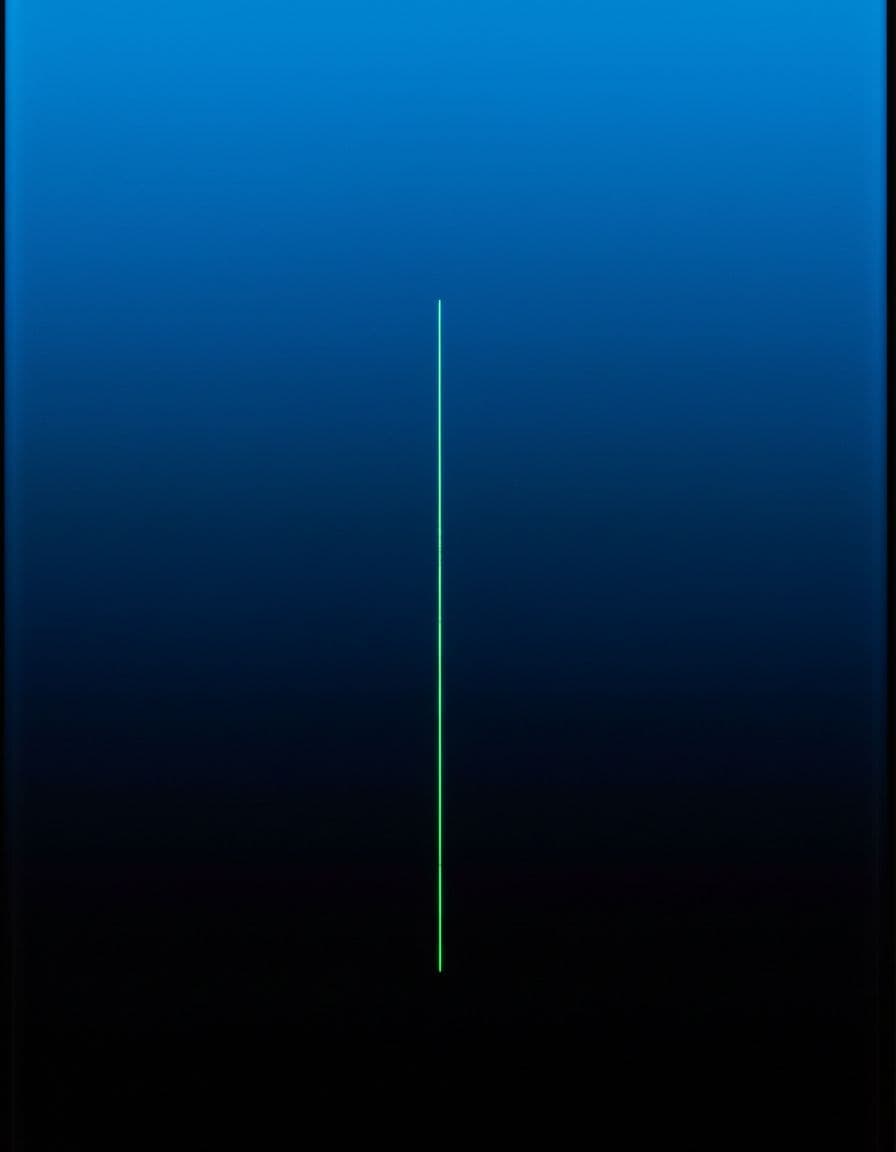
- Green line or pink line: a thin vertical line that stays in the same spot (jump to line fixes).
- Touch issues: missed taps, ghost touches, or dead zones (jump-to-touch fixes).
- Black screen but phone is on: vibrations, sounds, or calls work, but the display stays dark (jump to black screen fixes).
- Screen glitch after update: odd colors, jittery UI, flashing panels, or stutter with device lag (jump to update fixes).
- Brightness jumps: gets brighter or dimmer in steps, even within the same room (jump-to-brightness fixes).
- Tint, discoloration, fuzzy text: warm or green tint, uneven tones, or text that looks soft and causes eye fatigue (jump to discoloration fixes).
For background on the fuzzy text and comfort complaints, see this roundup of early reports on Privacy Display eye strain and fuzzy text.
Is it software or hardware? Do these 2 quick tests
This matters because it saves time. If the tests point to hardware, heavy troubleshooting usually won’t help. That’s when the return window or warranty becomes the safer move.
Use these tests when you see lines, flicker, glitches, or touch-response problems. They also help with Android version issues or major updates.
Screenshot test (takes 10 seconds)
- Take a screenshot (Side button + Volume down).
- Open the screenshot on the phone.
- If possible, view the same image on another device (tablet, PC, or a friend’s phone).
How to read the result:
- If the line or glitch shows in the screenshot file, it’s more likely software, GPU, theme, or rendering.
- If the problem does not appear in the screenshot but you still see it on the screen, it points more to a display panel, connector, or display driver issue.
For fuzzy text or eye strain, the screenshot often looks normal. That doesn’t prove a defect. It can be display behavior, settings, or OLED sensitivity.
Safe Mode test (best way to rule out apps)
Safe Mode starts the phone with Samsung’s core apps only. It helps rule out third-party launchers, accessibility overlays, screen filters, dimmer apps, and “blue light” apps.
- Boot into Safe Mode (method varies by model).
- Use the phone for 3 to 5 minutes.
- Check the exact screen action that triggers the issue (scrolling, typing, auto-brightness, gaming).
Pass or fail:
- If the issue goes away in Safe Mode, suspect an app or setting imported during setup.
- If the issue stays, suspect a system bug, firmware glitch, or hardware.
For more context on the eye discomfort discussion regarding the S26 Ultra display, this report summarizes what owners are saying about headaches and eye strain.
Fix order (safe steps first)
Follow this order. After each change, test for 3 to 5 minutes. Stop if fixed.
- Update software (system update plus Samsung app updates).
Why it helps: patches display drivers and System UI bugs.
Expect: one reboot, then some warmth while apps re-index.
Move on if: the issue returns after the next reboot. - Check display settings (Eye Comfort Shield, Extra Dim, Adaptive brightness).
Why it helps: these can change perceived sharpness, tint, and flicker feel.
Expect: instant change, especially on white backgrounds.
Move on if: there’s no clear improvement. - Refresh rate test (60 Hz vs 120 Hz).
Why it helps: reduces timing issues that can show as flicker or jitter.
Expect: less smooth scrolling at 60 Hz, but more stable visuals.
Move on if: flicker or glitches still show at 60 Hz. - Always On Display test (turn off for 1 hour).
Why it helps: rules out AOD conflicts with lock screen and brightness logic.
Expect: no always-on clock, fewer “wake” transitions.
Move on if: symptoms continue during normal use. - Reset all settings (safe).
Why it helps: clears bad settings imports after Smart Switch.
Expect: Wi-Fi, Bluetooth, and preferences reset, data stays.
Move on if: the problem repeats in Safe Mode too. - Backup plus factory reset (last resort).
Why it helps: removes deep software corruption.
Expect: setup time, then a clean baseline for testing.
Move on if the issue appears before installing apps; that’s a hardware sign.
Two real-world causes people miss: case pressure along the edges and a slightly misfit protector. Also, oily fingers can cause “missed touch” that feels like a defect.
Galaxy S26 Ultra touch screen not working (real fixes, safe order)
First, check the signs. They help separate software from hardware fast.
- Touch works in some apps but not others: likely an app, overlay, or accessibility setting.
- Dead zones, no touch anywhere, or ghost touches: more likely hardware, moisture, or a failing digitizer.
Now work in this order, testing after each step.
- Remove screen protector and case (test bare screen).
What to do: peel off the protector, remove the case, then test typing.
What to expect: better touch at edges, fewer missed taps. - Clean and dry the screen.
What to do: use a microfiber cloth, keep hands dry, avoid harsh cleaners.
What to expect: scrolling becomes consistent because oil can “skip” touch. - Restart, then test touch in Settings and in the Phone dialer.
What to do: reboot, then try taps in Settings, and type in the dialer keypad.
What to expect: if the dialer misses taps, it’s not “just one app.” - Turn off Accidental touch protection and extra sensitivity (if enabled).
What to do: toggle them off for a test session.
What to expect: fewer ghost touches if the phone was over-correcting input. - Safe Mode test.
What to do: boot Safe Mode and test the same areas of the screen.
What to expect: if touch works now, remove recent apps, launchers, and screen filters. - Check for software updates (system plus Galaxy Store apps).
What to do: update everything, then reboot.
What to expect: touch may improve after the first hour of use. - Reset all settings (safe, no data loss).
What to do: reset settings, then test before changing display options.
What to expect: touch becomes stable if a bad setting caused delays. - Factory reset (last resort, backup first).
What to do: reset, then test touch before restoring apps.
What to expect: if touch fails on a clean setup, it’s likely hardware.
A practical reference for additional steps to resolve an unresponsive screen is Technobezz’s guide to fixing an unresponsive S26 Ultra screen.
Clear service triggers: a dead strip, no touch at all, or ghost touches that keep happening after Safe Mode and a reset.
If touch fails in Safe Mode and you can reproduce it on demand, stop troubleshooting and start return or warranty steps.
Fix by symptom (mini-guides)
Use the mini-guide that matches what you see. After each change, give it a short test. Stop if fixed. If it looks like a defect (lines, black screen), record a quick photo or video for support.
Screen flickering (Galaxy S26 Ultra screen flickering fix)
Likely causes: refresh-rate changes, adaptive brightness and PWM sensitivity, Extra Dim, third-party dimmers, and firmware glitches after updates.
Fixes: switch to 60 Hz, disable adaptive brightness, toggle Extra Dim off, test at 40-70 percent brightness, try Safe Mode, then reset all settings.
Seek service: flicker occurs at normal brightness in Safe Mode, or during the boot logo.
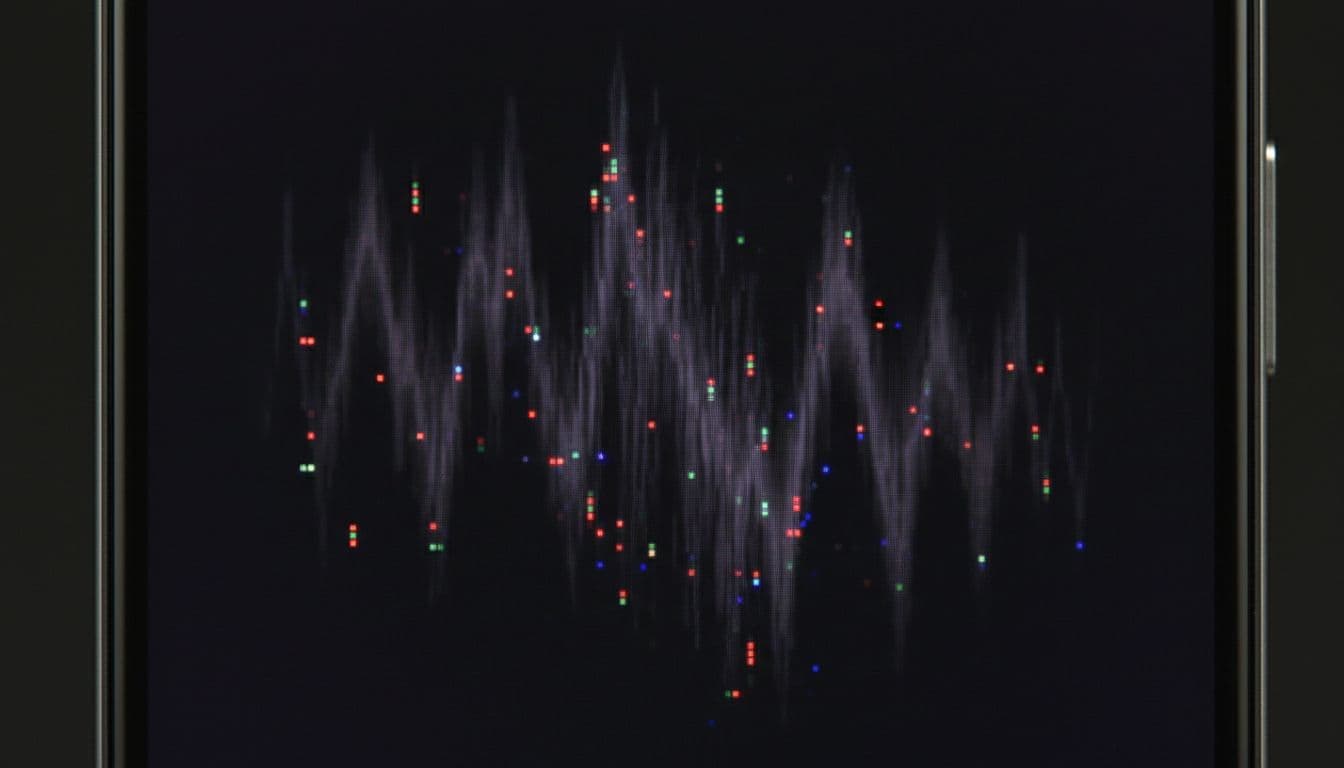
Green line or pink line on screen (Galaxy S26 Ultra green line on screen)
Likely causes: panel defect, connector stress, heat damage, rare driver issues.
Fixes: run the screenshot test, remove a tight case (edge pressure), restart, let the phone cool, then update software once.
Seek return or service: the line is not in screenshots and stays in Safe Mode. Don’t spend hours troubleshooting that pattern.
Touch screen not working (quick triage if you skipped the touch section)
Likely causes: protector or case fit, moisture or oil, overlay apps, system bugs.
Fixes: remove protector, clean and dry, restart, test in dialer, test Safe Mode, then reset all settings.
Seek service: any repeatable dead zone, or no touch in Safe Mode.
Black screen but phone is on (Galaxy S26 Ultra black screen but phone is on)
Likely causes: display crash, brightness set too low, Always On Display confusion, System UI bug, hardware failure.
Fixes: force restart, call the phone to confirm it’s on, plug into a charger, try Safe Mode, then update once the display returns.
Seek service: no boot logo ever appears, or the screen stays black after force restart and a Safe Mode attempt.
Screen glitch after update (Galaxy S26 Ultra screen glitch after update)
Likely causes: software update bugs, corrupted settings, theme or launcher conflicts, Smart Switch carryover.
Fixes: reboot, update Samsung apps, remove themes and launchers, test Safe Mode, then reset all settings.
Seek service: glitches appear before any apps are installed after a factory reset.
Brightness keeps changing (Galaxy S26 Ultra brightness keeps changing)
Likely causes: adaptive brightness learning, Eye Comfort Shield schedules, power saving, sensor blockage from a thick protector.
Fixes: clean the top sensor area, disable adaptive brightness for a day, check Modes and Routines, and test indoors versus sunlight.
Seek service: changes are extreme and continue after reset all settings.
Discoloration, tint, or fuzzy text (S26 Ultra display discoloration)
Likely causes: Screen mode mismatch, Eye Comfort Shield, Privacy Display behavior, OLED PWM sensitivity.
Fixes: disable Privacy Display if present, switch Natural versus Vivid to compare, turn off Eye Comfort Shield to test, try 60 Hz, and test at higher brightness.
Seek return or service: discomfort hits fast (nausea or headaches), or the unit looks worse than a store display after settings reset.
For examples of what owners reported and how Samsung responded in community threads, see this Samsung Community discussion on eye strain.
People also ask (quick answers)
Why is my Galaxy S26 Ultra screen flickering?
It’s usually caused by refresh-rate changes, adaptive brightness behavior, or dimmer apps.
If yes, do this: test 60 Hz, disable adaptive brightness, then check Safe Mode.
How do I fix Galaxy S26 Ultra screen problems without a factory reset?
Most issues improve with settings tests, updates, and Safe Mode, not a reset.
If yes, do this: restart, remove the protector, update, then reset all settings.
Is the green line on the Galaxy S26 Ultra a hardware defect?
Often yes, especially if it isn’t in screenshots and stays in Safe Mode.
If yes, do this: document it, then contact the seller or Samsung quickly.
Can a screen protector cause touch problems on the S26 Ultra?
Yes, a thick or poorly fitted protector can block touch and cause misses.
If yes, do this: test bare screen, then reapply or replace with a compatible one.
Why is my S26 Ultra screen glitching after an update?
It’s often a conflict with themes, launchers, or cached settings after an update.
If yes, do this: reboot, update Samsung apps, then test Safe Mode.
Should I return or replace my Galaxy S26 Ultra because of screen issues?
Return or replace when the issue is repeatable and survives quick tests.
If yes, do this: use screenshot and Safe Mode results, then act within the return window.
Why is my Galaxy S26 Ultra touch screen not working?
Common causes include protectors, moisture, overlay apps, system bugs, or hardware failure.
If yes, do this: clean, restart, then test Safe Mode.
How do I fix an unresponsive touch screen on Galaxy S26 Ultra?
Start with physical checks, then move to Safe Mode and settings resets.
If yes, do this: remove protector, clean, restart, dialer test, Safe Mode.
Does Safe Mode help fix Samsung touch screen issues?
Safe Mode doesn’t “repair” the phone, but it shows if an app is causing trouble.
If yes, do this: uninstall recent overlays, launchers, and screen filter apps.
Common mistakes to avoid
- Random “booster” apps: they can add overlays and create more Samsung display issues.
- Pressing on the screen: it can worsen a panel line or make touch defects permanent.
- Skipping updates: early firmware glitches often need a patch.
- Factory reset too early: it wastes time if a case, protector, or setting caused it.
Results: What improvement should look like
A real fix feels boring, and that’s good.
Flicker should stop during scrolling and on gray screens. Brightness should stay steady in the same room. Touch should register the same pressure across the panel. Text should look crisp enough to read without squinting or feeling strained.
Test times that keep things simple:
- 5 minutes after a setting change (brightness, 60 Hz, Eye Comfort Shield).
- 1 hour after turning off Always On Display.
- 24 hours after updates, because background optimization can settle.
- 1 day after resetting all settings, especially if Smart Switch imported preferences.
Stop troubleshooting and move to return or service when a line persists in Safe Mode, touch has dead zones, or the screen won’t show the boot logo.
Conclusion
Samsung Galaxy S26 Ultra screen problems often stem from a few repeatable causes: settings, apps, protectors, or hardware. Start with the 2-minute checklist, then run the screenshot test and a Safe Mode test. Next, follow the safe fix order and stop as soon as the screen looks normal. If hardware signs show up (lines that aren’t in screenshots, dead touch zones, or a black screen that won’t show the logo), it’s time to use the return window or warranty. Keep it simple and document what you see before contacting support.
