
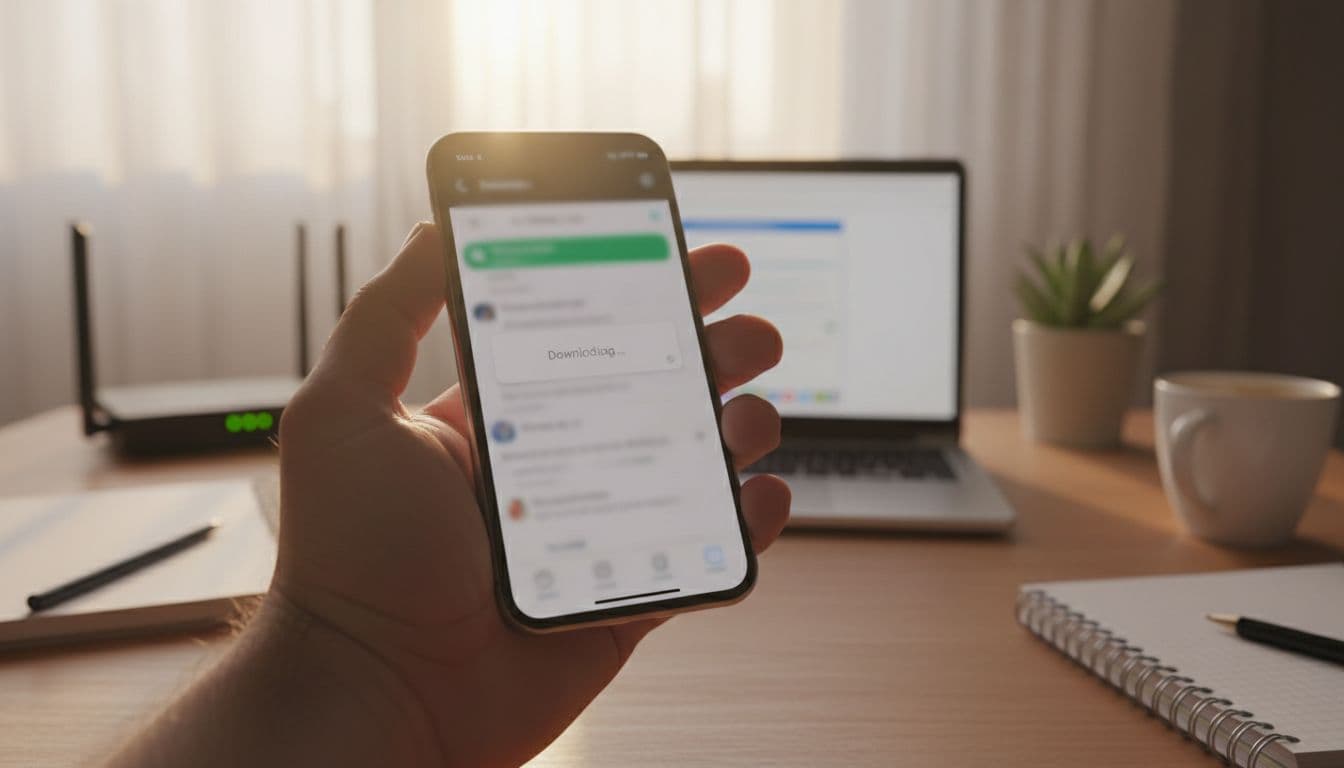

When whatsapp media not downloading on wifi Numbers Today hits, it rarely waits for a convenient time. Family group photos won’t open, an office PDF refuses to download, college notes stay stuck on downloading, and a voice note just keeps spinning.
The panic gets real when you need a document in 2 minutes, and WhatsApp shows “Download failed” even though WiFi works, but WhatsApp doesn’t. This guide starts with a quick checklist, then offers clear fixes for Android, WhatsApp settings, and home WiFi, while avoiding mobile data whenever possible. For more simple, step-by-step phone and app fixes, visit HowToDevice.
WhatsApp media not downloading on WIFI Numbers Today: Try these quick fixes first (2 minutes)

Run these in order. Don’t skip around, the sequence matters.
- Toggle WiFi off, then on (from Quick Settings).
What to do next: Go back to the same chat and retry the download. - Turn Airplane mode on for 10 seconds, then off.
What to do next: Go back to the same chat and retry the download. - Force close WhatsApp, then reopen it.
What to do next: Go back to the same chat and retry the download. - Restart the phone (one full reboot).
What to do next: Go back to the same chat and retry the download. - Restart the router (power off, wait 30 seconds, power on).
What to do next: Go back to the same chat and retry the download. - Try downloading a different media file (another photo or document, ideally from a different chat).
What to do next: Return to the original chat and retry the stuck download.
If the download starts and stops, the WiFi signal is often the reason. Keep that in mind for the WiFi section below.
Quick checks people skip, storage space, date and time, and app update
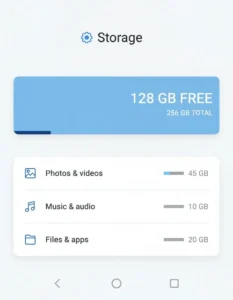
These take less than a minute each and solve a surprising number of cases.
- Free up storage: Delete a few large videos, clear Downloads, or move files to Google Drive. Low storage can block downloads even if your internet is fast.
What to do next: Return to the same chat and retry the download. - Set Date & Time to Automatic: Phone Settings > Date & time> Automatic (or “Use network-provided time”).
What to do next: Return to the same chat and retry the download. - Update WhatsApp: Open the Play Store or App Store, search for WhatsApp, and tap Update if available. Updates often fix media bugs.
What to do next: Return to the same chat and retry the download.
For official guidance on common media errors, see WhatsApp’s help page on can’t download, open, or send media.
If it works on mobile data but not WiFi, do this test
This test identifies whether the problem is your WiFi/router or your phone/WhatsApp.
- Turn on mobile data for 10 seconds and tap the same media once.
- If it starts downloading, turn mobile data off again (to save data).
- Then try another WiFi (a friend’s hotspot, office WiFi, or a second router if available).
If it works on mobile data and another WiFi, your home WiFi setup is the likely cause. If it fails everywhere, focus on phone settings and WhatsApp.
Find the real cause: is it your home WiFi, your phone settings, or WhatsApp?
Most cases fit into one of these buckets. This avoids guessing when WhatsApp photos not downloading or WhatsApp videos not downloading keeps repeating.
- Home WiFi/router issue: Media stays on “Downloading…”, shows “waiting for WiFi”, or fails only on your WiFi.
- Phone or WhatsApp restriction: Battery saver, data saver, background limits, permissions, or low storage blocks downloads.
- WhatsApp side issue: Temporary server problems or an outage affects media download and upload.
Common symptoms include being stuck on Downloading, “Download failed”, voice notes not loading, and documents failing. Pick the path that matches your symptoms, then jump to Android fixes, router fixes, or outage checks.
Signs your WiFi is the problem (even if YouTube works)
WiFi can look “fine” and still cause WhatsApp media to break.
- Weak signal in the room: 5GHz is fast but struggles through walls. Downloads may start, pause, then fail.
- Router glitch: Routers can get stuck after days of uptime.
- DNS hiccups: Some DNS settings cause random app issues while web browsing looks normal.
- VPN/proxy or network restrictions: A VPN profile, Private DNS, or a restrictive router setting can interfere.
Quick tip: Move closer to the router and retry once.
What to do next: Go back to the same chat and retry the download.
Signs your phone or WhatsApp settings are blocking downloads
Look here if WiFi works for everything else, but not for WhatsApp media.
- Downloads work only when WhatsApp is open (background blocked).
- Battery Saver is always on, or the phone is set to “optimize” WhatsApp.
- Data Saver blocks background activity.
- Storage is low, or WhatsApp lacks permission to access Photos, Videos, or Files.
- WhatsApp auto-download over WiFi is off.
What to do next: Follow the Android steps below in order, then retry the same media.
Fix it on Android first (most common on phones in India)
These steps cover Samsung, Redmi, Realme, Vivo, OPPO, and other Android phones. Menu names vary slightly, but the idea stays the same. For broader troubleshooting coverage, this walkthrough from Digital Citizen can help: fix WhatsApp “Download failed” media errors.
Allow WhatsApp to use WiFi in the background (Data Saver, Background data)
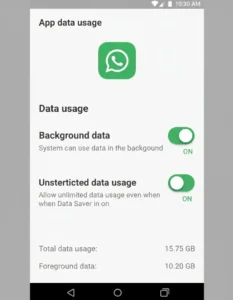
- Open Settings > Apps > WhatsApp.
- Tap Mobile data & WiFi (or Data usage).
- Turn on Background data and Unrestricted data usage (wording varies).
- If you see Data Saver, set WhatsApp to “Allowed” or “Unrestricted”.
What to do next: Go back to the same chat and retry the download.
Turn off Battery Saver for WhatsApp (it often breaks downloads)
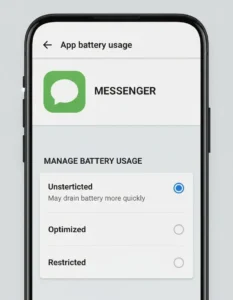
Battery saver often breaks background downloads on Android.
- Go to Settings > Battery.
- Turn Battery Saver off, or open App battery management.
- Set WhatsApp to Unrestricted or Not optimized.
What to do next: Go back to the same chat and retry the download.
Check WhatsApp permissions and storage, then clear cache safely
- Go to Settings > Apps > WhatsApp > Permissions.
- Allow Photos and videos (or Files and media, depending on the phone).
- Check phone Storage and free space if it’s low.
- Clear cache: Settings > Apps > WhatsApp > Storage > Clear cache.
Safety note: Clearing the cache is safe. Don’t tap Clear data unless you know your chats are backed up, it can remove app data.
What to do next: Go back to the same chat and retry the download.
WhatsApp settings and WiFi/router fixes when downloads still fail
At this point, the problem is often a WhatsApp setting or a home WiFi behavior that affects only certain apps. If you want a second reference for common steps, this guide can help: why WhatsApp media isn’t downloading.
When WhatsApp media not downloading on wifi Numbers Today keeps happening, check auto-download
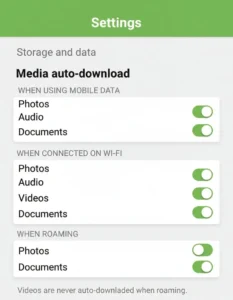
- Open WhatsApp > Settings > Storage and data.
- Tap Media auto-download.
- Under When connected on Wi-Fi, enable what you need: Photos, Audio, Videos, Documents.
Large videos can still take time on a weak signal, even on “fast” WiFi plans.
What to do next: Go back to the same chat and retry the download.
Restart and rejoin your WiFi the right way (plus 2.4GHz vs 5GHz)

- Restart router properly: unplug power, wait 30 seconds, plug back, wait until lights stabilize.
- On the phone: Forget WiFi, then reconnect and re-enter the password.
If your router has both bands, try switching:
- 2.4GHz: better range through walls, often more stable for downloads.
- 5GHz: faster near the router, weaker farther away.
What to do next: Go back to the same chat and retry the download.
Advanced but safe: turn off VPN/Private DNS, try a different DNS if needed
If a VPN or Private DNS is enabled, WhatsApp media can fail on some networks.
- Turn off any VPN app (and disconnect in Settings if needed).
- Android: Settings > Network & internet > Private DNS, set to Automatic or Off.
- Optional DNS change (only if comfortable): set DNS to 8.8.8.8 (Google) or 1.1.1.1 (Cloudflare) on the router or phone.
If it doesn’t help, undo the DNS changes to keep things simple.
What to do next: Go back to the same chat and retry the download.
For a workaround-focused take on video download issues, see Gadgets Now’s WhatsApp video download workaround.
If nothing works, check for a WhatsApp outage, then decide your last-resort steps
Sometimes it’s not the phone or the WiFi. WhatsApp has had periods when users reported issues sending and uploading in India, and media can be affected during broader service outages.
How to tell if WhatsApp is down today (and what to do while you wait)
Check an outage tracker and recent user reports, then test basics:
- Try sending a text message to one contact.
- Try downloading a small photo from another chat.
- Update WhatsApp and wait 10 to 30 minutes, then retry.
Widespread outages are less common than phone or WiFi issues, but they do happen.
What to do next: Retry the same media after 10 to 30 minutes.
Reinstall WhatsApp only if you have backed up chats
This is a last resort when settings, cache, and WiFi fixes fail.
- WhatsApp > Settings > Chats > Chat backup (Google Drive on Android, iCloud on iPhone).
- Confirm the backup finishes (don’t guess).
- Uninstall WhatsApp, restart the phone, reinstall, and sign in.
Clear warning: Reinstalling without a backup can cause chat loss.
What to do next: Open the same chat and retry the download.
Prevent this from happening again (easy habits that keep downloads working)
Small habits reduce repeat “waiting for WiFi” moments, especially on busy home networks.
A simple routine: update, keep storage free, and avoid aggressive battery saving
- Update WhatsApp once a month.
- Keep a few GB of free storage.
- Don’t keep Battery Saver on all day.
- Avoid unknown VPN apps.
- Restart the router once a week if it gets flaky.
These take minutes and save hours later.
Quick FAQs (straight answers)
Why is WhatsApp media not downloading on WiFi but it works on mobile data?
Common causes are weak WiFi signal, 5GHz range issues, router DNS problems, VPN/Private DNS, or Android background restrictions. Fast next steps: restart router, then turn off VPN/Private DNS and retry.
How do I fix WhatsApp stuck on “Downloading” on home WiFi?
Turn Airplane mode on and off, restart the router (wait 30 seconds), then try 2.4GHz instead of 5GHz. After that, check WhatsApp Settings > Storage and data > Media auto-download, then clear cache on Android.
Which WhatsApp setting stops photos and videos from downloading on WiFi?
WhatsApp > Settings > Storage and data > Media auto-download. Under “When connected on Wi-Fi”, Photos and Videos can be turned off, and Documents and Audio can be off too.
Does clearing WhatsApp cache delete chats (Android)?
No. Clear cache removes temporary files. Clear data can remove app data and may risk chat history if it isn’t backed up to Google Drive.
What should I do if WhatsApp documents won’t download on WiFi?
Check free storage, then allow Files and media permission (Settings > Apps > WhatsApp > Permissions). Enable Documents in WhatsApp auto-download. If it still fails, try another WiFi or ask the sender to resend.
Can low storage stop WhatsApp media downloads even with fast WiFi?
Yes. WhatsApp needs free space to save media, and downloads can fail when storage is tight. Delete large videos, clear Downloads, empty trash, then retry the same file.
Does 5GHz WiFi cause WhatsApp media download issues?
5GHz isn’t “bad”, but it has shorter range. Through walls, it can drop packets and cause stuck downloads. Move closer to the router or switch to the 2.4GHz band for stability.
How do I know if WhatsApp is down today?
Check an outage tracker and recent reports, then test text messaging versus media downloads. If many people report problems, wait 10 to 30 minutes and keep the app updated.
Should I reinstall WhatsApp if media won’t download on WiFi?
Only after trying router restart, WhatsApp auto-download settings, turning off VPN/Private DNS, and clearing cache (Android). Back up chats first: WhatsApp > Settings > Chats > Chat backup.
What is the fastest fix for “Download failed” on WhatsApp WiFi?
Restart the router properly (30-second power off), turn off VPN/Private DNS, and confirm WhatsApp Settings > Storage and data > Media auto-download is enabled for WiFi. Then retry the same media in the same chat.
Conclusion
Most cases clear up with three fixes: a proper router restart, enabling WhatsApp media auto-download over WiFi, and removing Android limits like Battery Saver or blocked background data. If whatsapp media not downloading on wifi Numbers Today still won’t go away, the issue is usually a WiFi band (2.4GHz vs 5GHz), DNS/VPN setting, or a temporary WhatsApp outage. Comment what worked, and if it didn’t, share the phone model and router type for a sharper fix path.
