

A missing 5GHz network can feel like the WiFi is “lying.” The router is right there, the plan is fast, but the phone only shows the slower 2.4GHz band. That’s usually when a meeting, class, stream, or game is about to start.
If 5ghz wifi not showing on android phone is the problem, the good news is that most fixes are quick. This guide starts with checks that don’t require router login, then proceeds to router settings only if access is available. The most common causes are simple: the phone may not support 5GHz, the 5GHz range is shorter (so it drops off fast), or router settings (merged names, DFS channels, security modes) are hiding the network.
The steps below follow a strict order so time isn’t wasted guessing.
Fast checks for 5ghz wifi not showing on android phone (no router login needed)
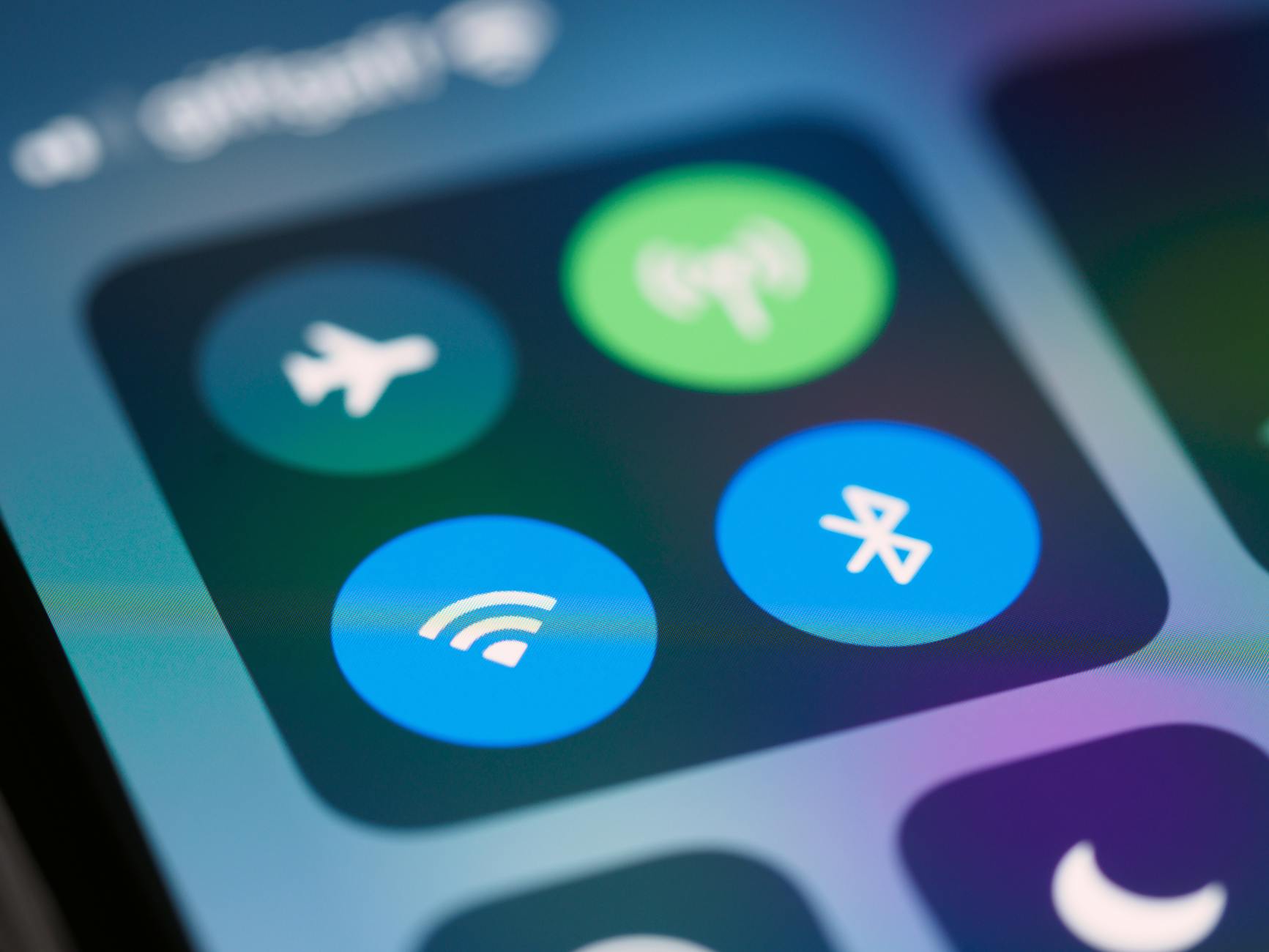
Photo by Brett Jordan
These are the quickest actions that usually fix “5GHz WiFi network not visible” issues without touching router settings. Move through them in order and stop when the 5GHz network appears.
- Confirm the phone supports 5GHz.
- Move closer to the router (same room).
- Restart the phone and router.
- Forget the WiFi network, then reconnect.
- Toggle airplane mode.
- Disable VPN and Private DNS (temporarily).
- Reset network settings (last step, wipes saved connections).
A useful checkpoint: if another device can see the 5GHz network but the Android can’t, it’s mostly a phone-side issue. If nothing can see it, it’s usually router-side.
First, make sure your phone actually supports 5GHz
A simple rule: single-band phones only use 2.4GHz, dual-band phones can use 2.4GHz and 5GHz.
Here are fast ways to confirm 5GHz support:
- Check the exact model specs: Search the full model name (for example, “Galaxy A12 SM-A125F WiFi”) and look for “802.11 a/ac/ax” or “dual-band.” Many spec sheets list supported bands clearly. For background on WiFi standards (a/b/g/n/ac/ax), see Wi-Fi standards explained.
- Look for a WiFi frequency setting (if present): Some Android builds show a “WiFi frequency band” option under WiFi advanced settings. If it’s locked to 2.4GHz, 5GHz may never show until it’s set to Auto.
- Check hotspot settings (sometimes): On a few phones, the WiFi hotspot menu includes “AP band” (2.4GHz or 5GHz). If 5GHz isn’t offered there, it can be a hint the hardware is 2.4GHz only (not always, but common).
If there’s no sign of 5GHz support and the model is known to be budget or older, the 5GHz SSID will never appear. In that case, the practical path is to use 2.4GHz, place the router more centrally, or upgrade the phone only if 5GHz is truly needed for low-latency work or gaming.
Quick fixes that solve most cases in under 5 minutes
This is the exact order that tends to produce results with the least effort.
- Move closer to the router: Stand in the same room. 5GHz is faster, but it drops through walls more easily than 2.4GHz. If 5GHz appears only when close, the network isn’t “gone,” it’s range limits.
- Restart the phone and router: Power the phone off, wait 10 seconds, power it back on. If possible, unplug the router for 20 to 30 seconds, then plug it back in and wait for WiFi to return.
- Forget the network and reconnect: On Android, press and hold the WiFi name (or open its settings), choose Forget, then reconnect and re-enter the password. This clears a saved profile that can get stuck.
- Toggle airplane mode: Turn airplane mode on for 10 seconds, then off. This forces a fresh scan and resets radio state.
- Disable VPN and Private DNS temporarily: VPN apps and Private DNS can cause strange WiFi behavior (including scan and connection glitches). Turn off the VPN, set Private DNS to “Off” or “Automatic,” test again, and re-enable it later.
- Reset network settings (last): This often fixes Android not detecting 5GHz due to a corrupted WiFi stack.
- Warning: it removes saved WiFi networks, Bluetooth pairings, and some network preferences.
- After the reset, reconnect to WiFi and test the scan again.
Decision point: test with another device. If a laptop or another phone can’t see the 5GHz network either, skip ahead to router settings. If other devices can see the 5GHz band, follow the Android steps above and the diagnosis section below.
For a second viewpoint on common phone-side fixes, see Android 5GHz WiFi troubleshooting steps.
If you can access the router, these settings usually bring back the 5GHz network
Only do this if the router is yours or you have clear permission to change settings. If the router is ISP-provided and locked down, it may be faster to contact the ISP to enable or reset the 5GHz band.
To open router settings, many home routers use 192.168.0.1 or 192.168.1.1 in a browser while connected to that WiFi. The admin login is often printed on the router label or provided by the ISP.
Make the 5GHz network visible, separate it, and avoid DFS channels
These settings control whether the 5GHz band shows up at all.
Start with the basics:
- Confirm 5GHz is enabled: Some routers allow turning the 5GHz radio off.
- Make sure SSID broadcast is on: If SSID broadcast is disabled (hidden network), some phones won’t show it in the normal list.
- Turn off Smart Connect or Band Steering (temporarily): This feature merges 2.4GHz and 5GHz under one name and pushes devices between bands. It’s convenient, but it can confuse troubleshooting. Split them so they’re clearly separate, for example:
- HomeWiFi (2.4GHz)
- HomeWiFi-5G (5GHz)
Then address a big hidden cause: DFS channels. DFS channels are radar-sharing 5GHz channels; some Android phones won’t display networks on certain DFS channels, or the network may vanish when the router switches channels.
Set the 5GHz channel manually instead of Auto:
- Try 36, 40, 44, or 48 first (common non-DFS choices).
- Depending on country and router, 149, 153, 157, 161, or 165 can also work well.
If the network keeps disappearing, “Auto” is often the reason. Locking it to a stable non-DFS channel tends to stop the vanishing act.
A general explainer on why 5GHz can vanish and how routers present bands is covered in 5GHz Wi‑Fi not showing up fixes.
Fix security and compatibility settings that block some Android phones
Security mode can stop older Android devices from seeing or joining a 5GHz network.
- Use WPA2/WPA3 mixed mode when possible: This supports newer devices while staying compatible with older ones.
- If mixed mode still causes issues, set WPA2-Personal (AES) as a fallback.
- Avoid WPA (legacy) and TKIP, which can break performance and compatibility.
A common trap: WPA3-only. Some older Android builds won’t connect, and a few may not even show the network reliably when WPA3-only is enabled.
Also check for router firmware updates in the admin menu. Firmware bugs can affect 5 GHz visibility and band-steering behavior. Apply updates only through the router’s official update feature, then reboot.
If the router is controlled by an ISP app and settings are limited, contact the ISP and describe the symptoms (“5GHz SSID not broadcasting” or “5GHz missing on all devices”). That phrasing is usually routed to the correct script quickly.
Use this quick diagnosis guide to pinpoint the real cause
This section narrows the problem to the phone, the router, or the environment (range and walls). The goal is to stop repeating the same steps.
When other devices see 5GHz but your Android does not
Likely causes include a phone limitation or a stuck WiFi configuration.
- Phone doesn’t support 5GHz: Confirm with the exact model specs.
- Saved network glitch: Forget the network and reconnect, then reset network settings if needed.
- VPN or Private DNS conflict: Disable them briefly and re-test WiFi scanning.
- Battery Saver or WiFi power saving: Some phones reduce scan behavior or background WiFi activity on aggressive battery modes.
- Android software bug: Install system updates, then reboot.
If the router channel is unknown, it’s still worth checking that the router is on 36 to 48. Even when other devices see 5GHz, some Android models are pickier about DFS channels.
An optional isolation test: boot into Safe Mode (it loads Android with most third-party apps disabled). If 5GHz appears in Safe Mode, an app like a VPN, firewall, or “security” suite may be interfering.
When no devices can see 5GHz, or you only see it near the router
Two common patterns show up.
Case 1: No devices see 5GHz at all
- 5GHz radio is disabled, SSID broadcast is off (hidden), DFS channel behavior is causing the band to drop, or the router firmware is unstable.
- Fix: enable 5GHz, broadcast SSID, split SSIDs, set channel to 36/40/44/48, update firmware, then reboot.
Case 2: 5GHz appears only when close
- That’s often normal range limits, especially with thick walls, floors, or metal surfaces.
- Fix: move the router higher and more central, avoid placing it behind a TV or inside a cabinet, reduce the number of walls between rooms. For larger homes, a mesh system or access point can be a better long-term answer, while 2.4GHz remains the better choice for far rooms.
For a broader list of router-side causes and checks, see router settings that affect 5GHz visibility.
FAQs (quick answers)
Why is 5ghz wifi not showing on android phone?
It’s usually because the phone doesn’t support 5GHz, the router is using a DFS channel, both bands share one WiFi name (band steering), 5GHz is disabled, or the phone is too far away. The fastest next step is to stand next to the router and restart both phone and router.
What is the best 5GHz channel for Android phones?
Start with 36, 40, 44, or 48 because they avoid DFS in most setups. Channels 149 to 165 can also be strong options depending on the country and router. If the network keeps vanishing, don’t use Auto, set a fixed channel.
How do I check if my phone supports 5GHz WiFi?
Look up the exact model’s WiFi specs and confirm it supports dual-band (often listed as 802.11 a/ac/ax). If the phone is single-band, it will never show 5GHz. A quick real-world test is checking whether the phone can see any known 5GHz network elsewhere.
Why do I only see one WiFi name instead of 2.4GHz and 5GHz?
That’s usually band steering (also called Smart Connect). The router shows one SSID and silently moves devices between 2.4GHz and 5GHz. If manual control is needed, split SSIDs so the 5GHz network has its own name like “HomeWiFi-5G.”
Is 5GHz faster than 2.4GHz, and why does it disappear farther away?
Yes, 5GHz is usually faster and less crowded, but it has shorter range and weaker signal through walls. A simple rule works: use 5GHz in the same room or nearby rooms, use 2.4GHz for distance and stability.
Will resetting network settings on Android help?
Yes, it often fixes stuck WiFi scanning and broken saved network profiles. It also removes saved WiFi networks, Bluetooth devices, and some network preferences, so reconnect afterward.
Why is 5GHz WiFi not showing on Samsung phones sometimes?
It’s often a DFS channel issue, Smart Connect confusion, or power saving behavior. The quickest path is to move closer, toggle airplane mode, reset network settings, then set the router’s 5GHz channel to 36 to 48.
Can Android “force” 5GHz like switching from 2.4GHz to 5GHz?
Not always, it depends on the router and whether SSIDs are split. If the router uses one SSID, the router decides the band. This guide on switching WiFi bands on Android explains common options.
Conclusion
When 5GHz Wifi Not Showing on Android Phone happens, the fastest winning path is usually: confirm the phone supports 5GHz, move close to the router, restart both devices, forget and reconnect, disable VPN and Private DNS, then reset network settings. If router access is available, enable 5GHz, broadcast the SSID, split the WiFi names, set a stable channel (36 to 48 is a solid start), and use WPA2 or WPA2/WPA3 mixed mode.
This article provides general troubleshooting information. Steps vary by phone and router model, and router settings should only be changed with ownership or clear permission. No guidance is provided for accessing or altering networks without authorization.
To narrow it down quickly, share the phone model, Android version, router brand (or ISP router name), and the step where the 5GHz network first appeared or is still missing.
SEE ALSO: Mobile Data Not Working After Update Android? Fix in 5 Min
